Video Maker & Editor: FotoPlay
- 4.8
- Rating
- 10.00M
- Installs
- Free
- Price

 Analysis by App-foxy
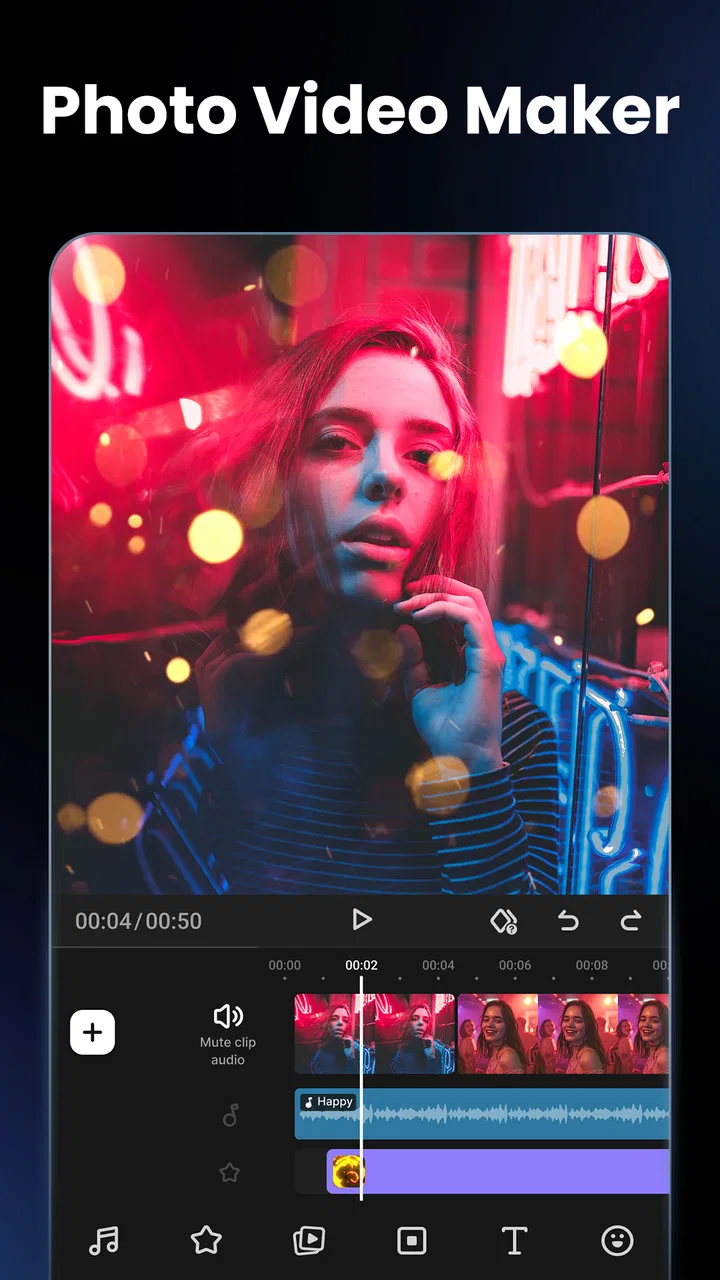
I approached Video Maker & Photo Music as the kind of editing app people open when they have a collection of photos, a few short clips, and a reason to turn them into something shareable quickly. It is a free video-editing app from FotoPlay Video Maker, aimed at everyday creators rather than people who want a full desktop-style timeline on a phone. My first impression was that it tries to keep the path from imported media to finished slideshow short, while still offering music, transitions, text, and visual effects for a more personal result.
That focus matters because mobile editing is often less about producing a cinematic masterpiece and more about finishing a birthday montage, travel recap, school presentation, social post, or family video before the moment passes. In that setting, the app feels approachable. It gives me enough creative control to avoid a completely automatic result, but it does not make every small decision feel like a technical task.
The app belongs to the video players and editors category, carries an Everyone age rating, and is free to install. Its popularity is substantial, with a 4.9 average from around 691 thousand ratings and more than 10 million installs. Those figures do not replace personal testing, but they do suggest that the simple, mobile-first approach connects with a broad audience. The current version is 8.1.1.3, and it runs on Android 7.0 or later.
You May Also Like

 Blood Strike: 2.5 Anniversary
Blood Strike’s Loadouts Turn Every Drop Into a Tactical Gamble
A close look at Blood Strike’s custom loadouts: how fast access to signature weapons reshapes its battle royale rhythm, rewards preparation, and narrows the gap between fights.

 Pandora - Music & Podcasts
Pandora’s Music Is Easy to Start, but Harder to Recover
Pandora’s strength is its low-effort path from a seed to a station. Its weak spot is how much confidence it asks you to place in connection, setup, and quiet recovery.

 8 Ball Pool
 Is Built on Rivalries, Rematches, and Routine
A close look at the rivalries, rematches, shared routines, and unanswered safety questions that turn a quick pool match into a persistent mobile community.

 Samsung Music
’s Quiet Strength Is Playing What You Already Own
Its reach comes less from spectacle than from dependable access to a personal library. That simplicity is both the app’s strongest retention engine and its ceiling.

 AccuWeather: Weather Radar
AccuWeather Review: A Quick, Clear Forecast for Everyday Decisions
For everyday plans, the best forecast is the one you can understand quickly. AccuWeather makes rain timing, radar, and local conditions easy to act on, with a few trade-offs.

 Hill Climb Racing
Why Hill Climb Racing Still Turns Crashes Into One More Run
A tiny car, a bumpy hill and one more upgrade: Hill Climb Racing keeps resurfacing because its simple chaos makes every near-miss feel personal.
More From Our News Desk



How connectivity changes the editing experience
When I edit on a phone, connectivity matters most at the moments around the creative work: bringing in what I need, keeping the project moving, and getting the finished video where it belongs. I find it useful to separate those steps, so a patchy connection does not dictate the pace of choosing images or shaping their order. That distinction also helps me decide when a quick mobile workflow is enough and when I should wait for a steadier handoff.
Starting a project on a phone
The most comfortable way to use this app is to begin with a clear purpose. I would not open it with hundreds of unorganized files and hope inspiration appears. A better workflow is to select the photos or clips first, decide whether the finished piece is meant for a phone screen or a wider display, and then build around one idea. That small amount of preparation makes the app feel much faster because the creative work happens inside the project instead of becoming a long search through the gallery.
Photo slideshows are where the app makes the most immediate sense. A sequence of still images can feel flat when shown one after another, but adding timing changes, transitions, text, and music gives the collection a rhythm. I found that restraint is more important than using every effect. One consistent transition style usually looks more polished than switching between several dramatic options simply because they are available.
Connectivity becomes relevant when I move beyond the media already on the device. Music choices, effect resources, sharing destinations, and any part of the workflow that involves loading online material can make the experience depend on the quality of the connection at that moment. A stable connection makes browsing and preparing a project feel more predictable. A weak one can turn a quick edit into a stop-and-start process, especially when I am working away from home.
I would therefore treat the app as a mobile editor whose smoothness can vary depending on what I am trying to access and when. I would not plan an important last-minute project around an assumption that every part of the experience will behave identically without a network connection. Instead, I would prepare the source photos and clips in advance, leave enough time for any loading or export steps, and avoid beginning a major project immediately before I need to send it.
Music, timing, and the difference between a slideshow and a story
Adding music is easy to understand, but choosing it well takes more thought. The soundtrack sets the pace for the whole project, so a fast track can make a calm set of family photos feel rushed, while a slow song can make a short event recap drag. I prefer to choose the audio direction before polishing transitions. Otherwise, I often end up adjusting the visual rhythm twice.
A useful technique is to group images by moment rather than by file order. For example, a day trip could move from arrival, to the main activity, to a quieter ending. That structure gives the viewer a reason to keep watching. The app’s text tools are most effective when they support that structure with short labels, locations, or a closing message. Long paragraphs on a phone-sized video are difficult to read and usually distract from the images.
The connection issue also affects creative patience. If I am waiting for an asset or a sharing step, I am more likely to accept the first music choice or add too many effects just to finish. My advice is to separate the creative pass from the delivery pass: make the visual decisions first, then handle loading, saving, and sharing once the edit itself feels complete.
Where it fits among mobile alternatives
Compared with a basic gallery slideshow, this app gives me more control over the personality of the result. A gallery tool may be quicker for a simple sequence, but it generally offers less room to shape transitions, captions, and the relationship between images and music. Compared with a more advanced mobile editor, Video Maker & Photo Music feels less intimidating, but it is also not the tool I would choose for detailed multi-layer production, complex audio mixing, or precise professional color work.
That middle position is its strength. Someone who finds a professional editor crowded with tracks, panels, and technical settings can get moving here without studying a manual. Someone already comfortable with advanced editing may find the project controls too limited for demanding work. The right choice depends less on the number of effects and more on whether the app’s guided simplicity matches the project.
Using it in real mobile situations
Imagine I am at a family gathering and want to make a short birthday video before everyone leaves. I can select the strongest photos, arrange them around the birthday person, add a brief opening title, choose music with a suitable mood, and use one or two transitions throughout. The practical challenge is not the editing itself; it is working in a busy environment with a phone that may have limited battery, crowded storage, or an unreliable connection.
In that situation, I would avoid importing every image from the event. Selecting the best material first reduces clutter and makes the final video more coherent. I would also save a draft before experimenting with decorative effects. That way, if the app closes, the phone runs short on space, or I decide to restart the visual style, I am not forced to reconstruct the entire sequence from memory.
For a travel recap, I would use the app differently. I would make several small sections instead of one long stream of every stop. Shorter sections are easier to review on a phone and less frustrating to share when connectivity is inconsistent. A concise opening title can identify the place, while a final image can provide a natural ending without requiring a complicated closing animation.
What happens when a project is interrupted
Mobile editing is vulnerable to interruptions that desktop users often avoid: incoming calls, low battery, another app taking memory, accidental navigation away from the project, or a network change while preparing an asset or sharing the result. I recommend saving progress whenever I reach a meaningful stage, especially after arranging the media and again after finishing the text and music.
If something goes wrong, the first recovery step is to reopen the project calmly rather than immediately rebuilding it. I would check whether the latest changes remain, confirm that the media still appears in the intended order, and then test a short portion before attempting the complete export. This staged approach is useful because it separates a project problem from a delivery problem.
Keeping the original photos and clips untouched is another practical safeguard. I prefer to treat the project as an arrangement of source material, not as the only copy of anything important. If a file is moved, renamed, or removed from the phone during editing, the project may become harder to complete. Organizing the source media in one place before starting is a small habit that prevents a surprising amount of confusion.
Exporting is the point where patience matters most. A project that looks correct in the editor still needs to be checked as a finished video. I would watch the saved result from beginning to end, paying attention to text readability, image cropping, music timing, and the final seconds. This is particularly important when the video will be sent through a messaging service or posted somewhere that may process it again.
Working carefully with mobile data and storage
People often think of data-conscious editing as only a network issue, but storage is just as important. Video files and exported projects can quickly occupy space, especially when I keep several versions while experimenting. Before a large edit, I would check available storage, remove unnecessary duplicates, and avoid creating multiple exports that differ only slightly.
When I am using mobile data, I prefer to postpone nonessential loading and sharing until I am on a reliable Wi-Fi connection. This is not because every action necessarily consumes a large amount of data, but because video workflows are unpredictable: source files, music-related resources, previews, and final exports can all change the amount of information moving through the connection. Waiting is sensible when the project is not urgent.
A useful compromise is to do the creative preparation anywhere and reserve the final delivery for a stronger connection. I can choose the photos, arrange the sequence, write the captions, and refine the visual style while traveling, then complete the steps that involve heavier loading or sharing later. This makes the app more practical for commuters, students, and travelers who do not want their editing routine tied to one location.
I also recommend keeping project length realistic. A short, focused video is easier to store, review, export, and send than an exhaustive archive of an event. If the goal is to remember everything, a folder of original media is better. If the goal is to communicate a feeling or tell a compact story, the editor works best when I am selective.
Free access and the role of in-app purchases
The app is free, which lowers the barrier for someone who wants to try mobile video creation without committing to a subscription at the start. There are in-app purchases ranging from $0.99 to $24.99 per item, so I would review any purchase screen carefully before confirming an upgrade or extra resource. The free entry point is useful for testing whether the workflow suits me, particularly if I only make occasional slideshows.
My advice is to complete a small personal project first. That reveals whether the available editing tools are enough for the kind of videos I actually make, whether the export routine fits my phone, and whether the app’s presentation style feels comfortable. There is little value in paying for additional options before knowing that the basic process is a good match.
For frequent creators, the decision is more nuanced. A paid feature can be worthwhile if it removes a repeated obstacle in a workflow I use every week. For occasional family videos, the free experience may already cover the main need. Either way, the purchase should solve a specific problem rather than become an impulse triggered by a locked effect or asset.
Who will enjoy it, and who should look elsewhere
I think this app is particularly suitable for beginners, families, students, casual social creators, and anyone who wants to turn photos into a presentable video without learning a complex editing system. It is also a good fit for people who value speed and visual simplicity more than fine-grained production control.
I would look elsewhere if my work required sophisticated timeline management, detailed audio editing, advanced compositing, or a highly controlled professional export process. A dedicated advanced editor is a better choice for those needs, even if it takes longer to learn. Likewise, someone who only wants an instant automatic slideshow may prefer the phone’s built-in gallery tools because opening a separate editor can feel unnecessary for a one-off sequence.
The app is less convincing when I treat effects as a substitute for editing decisions. Its tools can decorate weak material, but they cannot fix blurry images, repetitive shots, or a story with no clear direction. The best results come from selecting good source media and using the app’s features to support that material rather than overwhelm it.
My practical verdict on connected editing
After looking at the full workflow, I see Video Maker & Photo Music as a friendly, flexible option for personal videos made on the go. Its strongest quality is the balance between accessibility and creative input: I can produce more than a bare slideshow without facing the complexity of a professional suite. Music, text, transitions, and effects give ordinary photos a stronger sense of occasion.
Connectivity shapes the experience most when I am loading resources, preparing an export, or sharing the finished file. For that reason, I would keep source media organized, save drafts, protect the originals, and handle important delivery steps on a dependable connection. Those habits make the app feel much more reliable than simply tapping through a project as quickly as possible.
The high 4.9 average and broad audience are consistent with an app that makes a common task approachable, but I would still judge it by my own editing needs. It is not my first recommendation for demanding production, and I would not choose it solely because it offers many visual options. I would recommend it to a friend who wants a straightforward way to make a polished photo video on a phone, especially when the goal is a memorable, shareable result rather than technical control.
My final recommendation is simple: use it when you want creative help without a steep learning curve, prepare your media before you start, and plan around connectivity during loading, export, and sharing. With that approach, the app is a capable everyday companion for mobile slideshows and short personal videos, while advanced editors remain the better route for complex projects.
FAQs for Video Maker & Editor: FotoPlay
01What are the key features of Video Maker & Photo Music?
Video Maker & Photo Music offers a variety of features, including video editing, photo slideshow creation, and music integration. Users can trim and merge videos, add transitions, apply filters, and incorporate music tracks from their library. The app also supports high-resolution video output and social media sharing, making it versatile for content creators.
02Is Video Maker & Photo Music free to use?
Video Maker & Photo Music offers a free version with basic functionalities. However, to access advanced features such as premium filters, transitions, and removal of watermarks, users may need to purchase a subscription or make in-app purchases. The app provides various pricing options to cater to different user needs.
03Can I use my own music in the videos created with Video Maker & Photo Music?
Yes, Video Maker & Photo Music allows users to incorporate their own music tracks into videos. You can upload tracks from your device’s library. The app also offers a selection of royalty-free music for users who may not have their own tracks or need additional options.
04Is Video Maker & Photo Music suitable for beginners?
Absolutely, Video Maker & Photo Music is designed with user-friendliness in mind. Its intuitive interface and easy-to-use tools make it accessible for beginners. The app provides tutorials and guides to help new users navigate through the video and photo editing process, ensuring a smooth experience even for those with no prior editing knowledge.
05Does Video Maker & Photo Music support multiple video formats?
Yes, the app supports a wide range of video formats, including MP4, MOV, and AVI, among others. This compatibility ensures that users can import and export videos seamlessly, without worrying about format restrictions. The app’s versatility across formats is one of its strong selling points for diverse user needs.
Pros
- Intuitive user interface for easy navigation.
- Wide range of music tracks to choose from.
- High-quality video export options.
- Supports multiple video formats.
- Regular updates with new features.
Cons
- Limited free features; in-app purchases required.
- Occasional ads can be disruptive.
- Requires stable internet for music downloads.
- Some features may be complex for beginners.
- Large file size may impact storage space.

Video Maker & Editor: FotoPlay
Gallery